Automatic vs Manual Time Tracking: How to Choose
Automatic tracking reduces missed starts but needs review. Manual tracking gives direct control but depends on a consistent habit. Compare both methods and choose based on the record you need.
At 5:03 p.m., a developer shuts the Mac and remembers the work, but not the hours. There were code reviews, two meetings, a bug fix, and an hour lost to a timer that never started. They can estimate the day now, or change how time is captured tomorrow. Which method will produce a record they can actually trust?
Automatic time tracking records activity in the background and gives you a timeline to review. Manual time tracking asks you to start a timer or enter time yourself. Automatic tracking can reduce forgotten entries; manual tracking gives you clearer control over what an entry means. For client billing, a mixed workflow often works best: capture a timeline, then review and approve the project entries.
How the two methods work
Manual tracking records time when you press start and stop, or add an entry later. The person chooses the task, project, and sometimes billable status. This keeps the meaning of the entry close to the person doing the work, but creates a dependency on remembering.
Automatic tracking observes signals such as active apps, websites, or window titles, then creates a timeline or suggested activity. This can help you reconstruct the day without starting a timer for each task. The software may not know whether a document belongs to a client project, internal planning, or personal work. A human review is still needed.
Question | Automatic tracking | Manual tracking |
|---|---|---|
Do I need to remember to start a timer? | Usually no, depending on the tool and settings | Yes, unless you add the time later |
How much context is captured? | App and window activity, sometimes browser details | The task and project details you enter |
What needs review? | Categories, gaps, idle time, and project assignment | Missed starts, stops, and estimates |
Who controls the entry meaning? | The person reviewing the captured activity | The person creating the entry |
Where it can work well | Personal review, forgotten timers, reconstructing a workday | Client billing, explicit task tracking, simple workflows |
Main risk | Capturing activity that needs correction or raises privacy concerns | Missing time or entering an inaccurate estimate |
When automatic tracking is useful
Automatic tracking helps when tasks change often, work happens across many apps, or timers are easy to forget. It can create a record to review after a meeting heavy day, a research session, or a stretch of work with frequent interruptions.
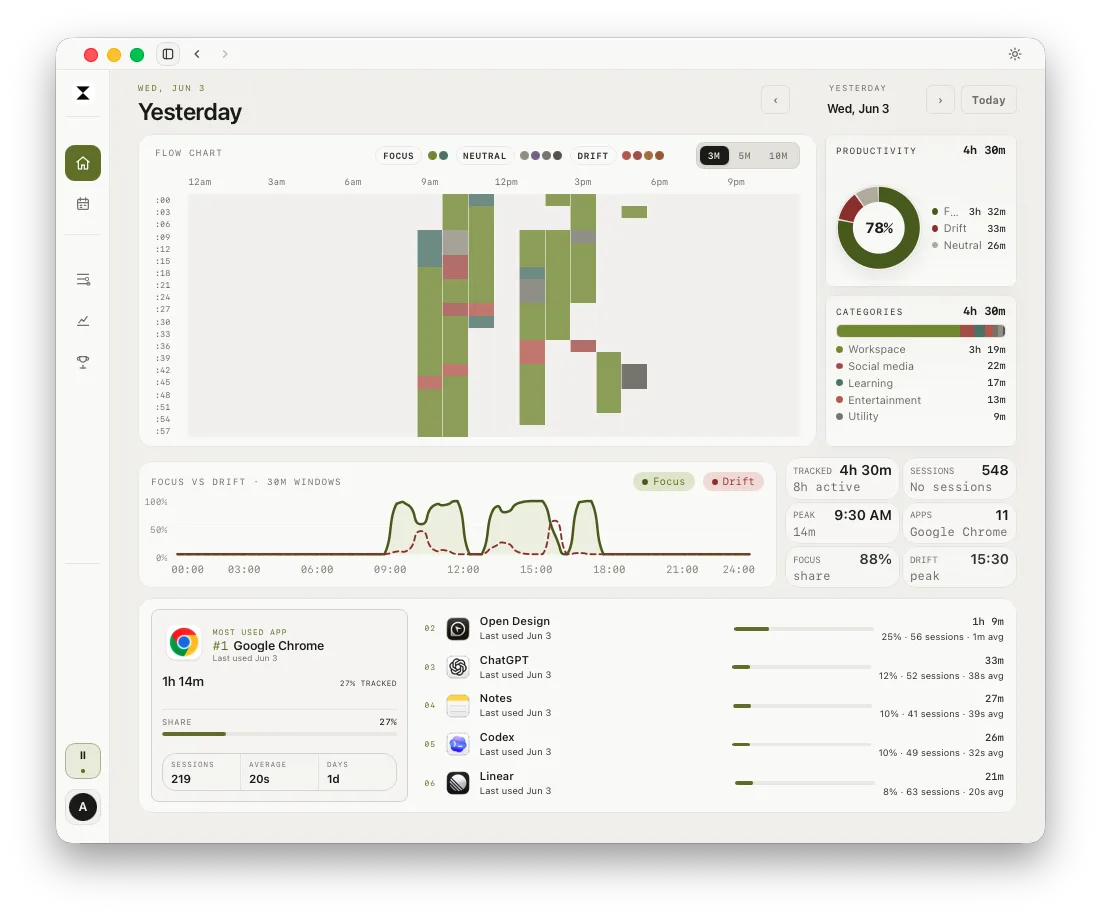
For Mac users, automatic time tracking software can show a timeline without requiring a timer for every task. Some tools also create focus categories or project suggestions. Check exactly what the application records. Some capture app names only, while others can include window titles, browser URLs, or file names. Check whether activity stays local, syncs to an account, or is sent to an AI provider for classification.
Automatic tracking can still mislabel time. A browser open in the foreground does not prove you were working on a specific project. Treat the timeline as evidence for review, not a final timesheet.
When manual tracking is the better choice
Manual tracking is useful when the project or billable meaning matters more than reconstructing every activity. A consultant can start a timer for a client call and select the correct project. A small team may prefer a simple shared rule for starting, stopping, and approving entries.
Manual tracking also captures work that computer activity does not show, such as whiteboard planning, phone calls, or time away from the desk. Its weak point is memory. If you routinely remember hours at the end of the day, your entries may become rough estimates.
A manual process is most likely to stick when it is easy to start, includes clear project names, and has a regular review moment. If people avoid the timer because it interrupts concentration, reducing the number of timer changes may matter more than adding a more detailed form.
A practical hybrid workflow
For many people, the choice is not all automatic or all manual:
Capture computer activity automatically during work hours.
Review the timeline at the end of the day.
Assign meaningful blocks to the right project or task.
Add work that happened away from the computer.
Approve or export entries only after checking them.
This can reduce forgotten hours without assuming the software knows the intent behind each app. Teams should agree on which entries require manager approval and what data they expect the tracker to capture. Personal activity tracking should be transparent, limited to a clear purpose, and controlled by appropriate settings.
drifty is one option for Mac and Windows for people who want an automatic timeline and a personal focus or drift review. Its tracking history is local by default, and classification can be configured to use drifty Cloud, Local AI, or your own key. It is aimed at understanding an individual's workday, rather than creating client invoices or approving team timesheets. See drifty's automatic time tracker for Mac for its workflow and privacy choices.
How to choose in five minutes
Choose manual tracking if each entry must have an explicit task or client label and the timer habit is realistic for your team. Choose automatic tracking if missed starts are common and a reviewable activity timeline would help. Choose a hybrid if both recall and project accuracy matter.
Before rolling out automatic tracking for a team, review the privacy and policy requirements. Tell people what is captured, when it runs, who can see the results, and how to pause it. Compare tracking options with that policy in mind. A tool that records more data is not automatically more useful.
FAQ
Is automatic time tracking more accurate than manual tracking?
It can capture more activity and reduce forgotten starts, but activity still needs interpretation. Manual tracking records the task a person selects, but can miss time when the timer is not used. Accuracy depends on the work and review process.
Is manual time tracking better for client billing?
Manual timers can make project assignment explicit. Automatic capture can help recover forgotten time. For billing, review every entry, confirm the client and billable status, and use a tool that supports the required report or export.
Can automatic time tracking run on a Mac without a timer?
Yes. Some Mac apps run in the background and build an activity timeline. Check their current capture settings, permissions, privacy controls, and whether they record app names, window titles, browser activity, or other details.
Is automatic time tracking suitable for teams?
It can help teams reduce missing time, but only when capture is transparent and the review and approval process is clear. Decide who can see activity, what is captured, and how employees can pause tracking before rollout.
Does automatic tracking record productivity?
It records activity signals. It cannot directly measure the quality, value, or difficulty of a person's work. Use it to support reflection or time entry, not as a standalone measure of performance.
Sources
drifty automatic tracking overview, drifty privacy controls, Timely capture details, Toggl Timeline.
See your workday with context.
Let drifty capture the day automatically, then review focus and drift without rebuilding it from memory.