Best Screen Time alternative for Mac.
Screen Time tells you how much time you spent on your Mac. drifty helps answer the next question: what were you actually doing, when were you focused, and where did the day start to drift?
Best Screen Time alternative for Mac.
It is 5:30 p.m. Screen Time says you spent three hours in Chrome, but how much of that was client work? Drifty is a useful Screen Time alternative for Mac when you want more context about your workday. Apple’s Screen Time is still a good starting point for usage limits and family controls.
Quick answer: should you choose Drifty or Screen Time?
Choose Drifty if you want to review your Mac activity with window or website context and correct how work is labelled. Choose Screen Time if you mainly want usage totals or limits on selected apps. Both record activity automatically once enabled. You do not need Drifty just to avoid a start and stop timer.
This comparison uses Apple’s and Drifty’s published documentation, checked on September 15, 2026. Screenshots are published product examples, not results from an independent performance test.
Why Screen Time starts to feel limited
Screen Time can show app and website use, daily or weekly reports, notifications and device pickups. You can also review a particular device instead of a combined total. That is useful when your question is, “Where am I spending time?” Apple’s Screen Time usage guide explains these views.
Work raises a different question: “What was I doing during that time?”
A software engineer might use Chrome to read an API reference and later browse a shopping site. An accountant might spend most of the afternoon in one spreadsheet app while switching between clients. An app total alone cannot explain those changes.
Screen Time’s reports can help you spot a habit. More detailed activity context can help you reconstruct a workday.
Screen Time vs Drifty: feature comparison
Feature | Apple Screen Time | Drifty |
|---|---|---|
Automatic recording | Records usage after you enable App & Website Activity | Records Mac activity in the background after setup |
Activity detail | App and website usage totals with category views | Activity timeline with app information and available window or browser context |
Work labels | Usage categories in Screen Time reports | Editable focus, neutral and drift labels |
Limits and reminders | App or website limits and scheduled Downtime | Optional alerts when activity is classified as drift; automatic closing is a separate choice |
Family controls | Supports managing a child’s Screen Time through Family Sharing | Intended for personal work review; does not replace Apple’s family controls |
More than one device | Can combine supported Apple devices using the same Apple Account | Local Mac tracking; optional paid Device Sync Preview for your Macs |
Cost | Included with macOS | Core local tracking is free; hosted Drifty Cloud AI is paid |
Feature details: Apple’s setup guide, Drifty’s timeline guide, nudge settings and account plans.
What Drifty adds: context inside the same app
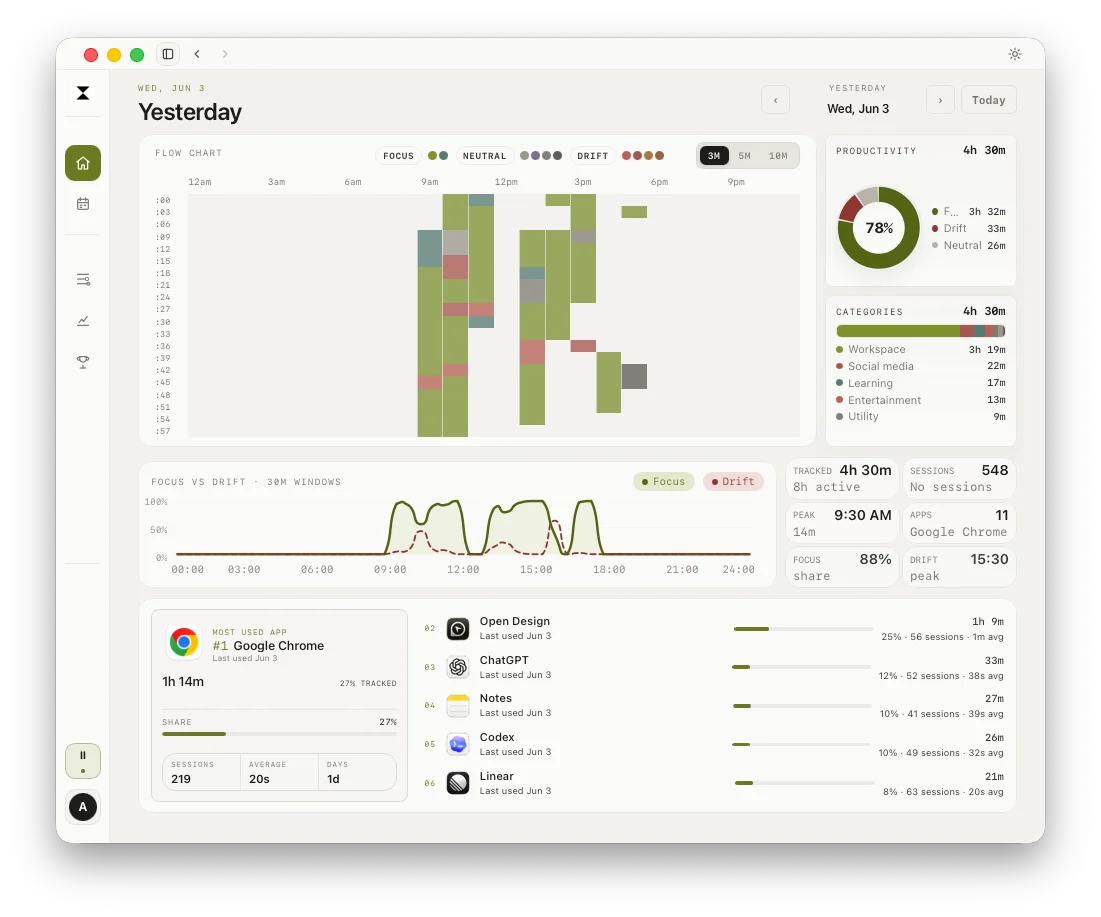
Drifty can use window titles and browser details to give activity more context, depending on your permissions and the information an app exposes. Its day view lets you review activity across the day and inspect the apps involved. See how the timeline works.
That detail can help when you remember working all morning but cannot explain where the hours went. A document title may jog your memory about a client review. A website entry may remind you of research you forgot to count.
It is still a record to review. A window title does not prove that you finished a task, and time in an app does not automatically equal billable work.
No timer, no manual tagging
You do not need to start a timer every time you switch tasks in Drifty. You can enable launch at login and pause tracking from the menu bar. Drifty’s setup guide explains the controls.
Automatic classification also reduces the need to label every activity yourself. You may still need to correct a label when the app misunderstands your work.
Focus, neutral, drift: labels you can correct
A video can be a break or part of your research. The app name alone does not settle that question.
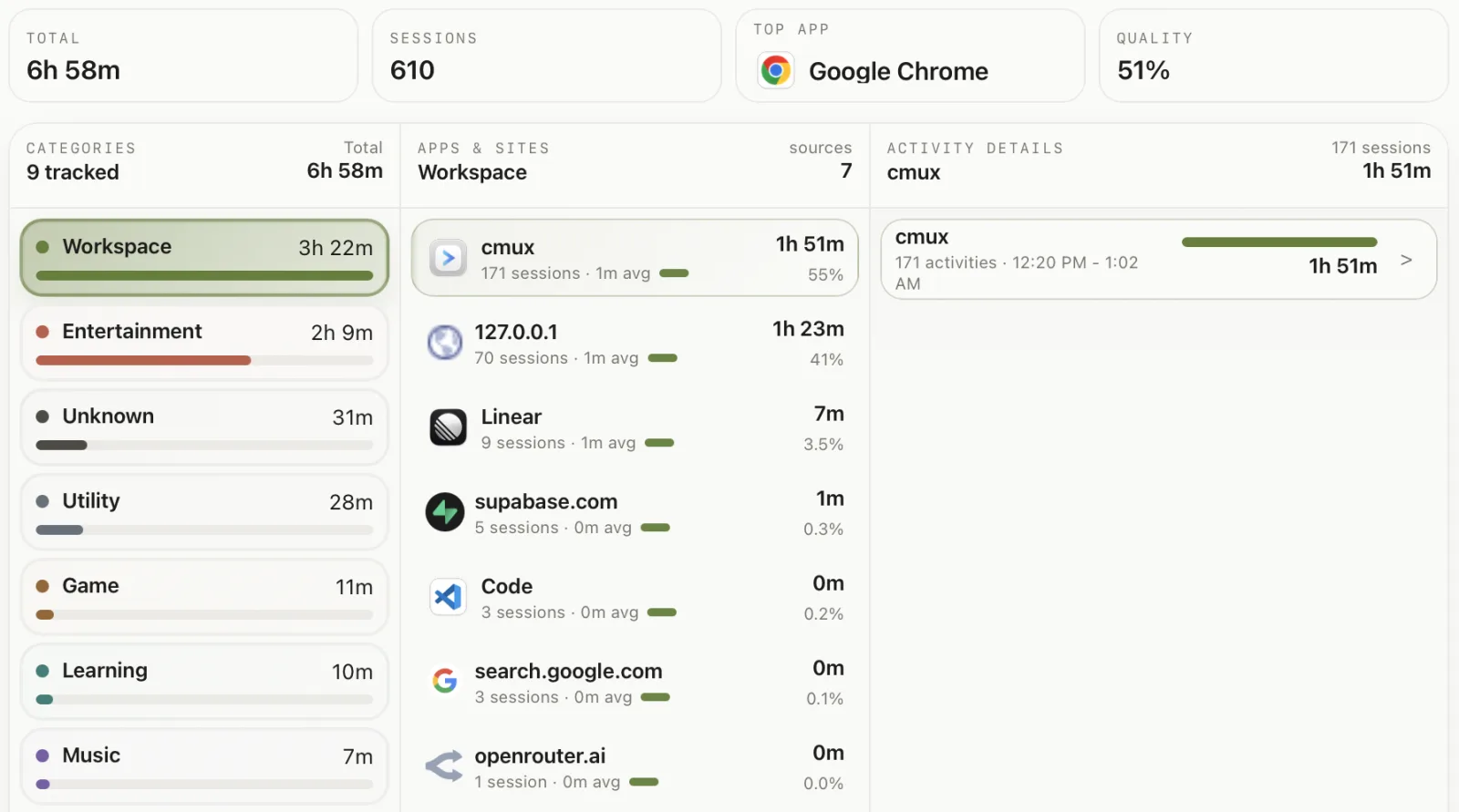
Drifty classifies activity as focus, neutral or drift. In the Classification tab, you can edit a category or productivity label. App and domain corrections can apply to matching past and future activity; more specific corrections can match a window title or page URL. Read the classification controls.
Treat these labels as a way to review your habits. They are not a measure of how valuable your work was.
When a report is not enough, you need a way back
Screen Time already lets you take action. You can set limits for apps or websites and schedule Downtime. It is useful if you want a clear rule, such as a daily allowance for a shopping site. Apple explains how to set limits.
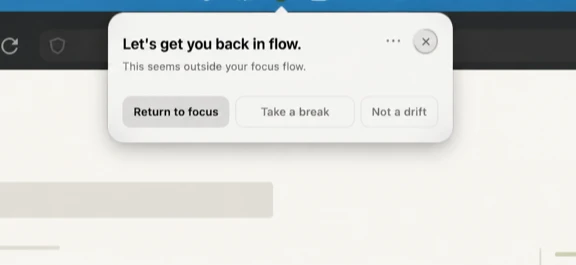
Drifty’s prompts follow activity classified as drift. Choose Just record for a quiet timeline, or Alert me for a prompt when drift continues. Automatic close is a separate, optional setting that can close a tab or quit an app. It can cause unsaved work to be lost, so review the nudge settings before enabling it.
Drifty is free to start
Drifty’s free version includes automatic tracking, the timeline and daily review on your Mac. You can use the local path without creating an account. Hosted Drifty Cloud AI is a paid option. See what each plan includes.
Local AI needs a model download and enough available memory and storage. Using your own remote AI key can involve provider charges. Compare the AI options.
Limitations to check before switching
Mac compatibility: the current Drifty app requires Apple Silicon and macOS 13 or later. Check the download requirements if you use an Intel Mac.
Permissions: window context depends on Accessibility access. If you turn it off after setup, app tracking can continue, but window titles are missing. Read the permissions guide.
Missing work context: thinking away from your desk or reviewing printed documents cannot be explained by a Mac activity log alone. Keep your own notes when that time matters.
Classification mistakes: review labels before using them to change your routine. A research session marked as drift may simply need a correction.
Neither an app total nor an AI label should be treated as a finished client timesheet without review.
Privacy: what stays on your Mac?
Apple Screen Time
Screen Time has a Share across devices setting for devices using the same Apple Account. Family Sharing adds controls for managing a child’s usage. Check those settings so you know which devices and family members your Screen Time view covers. Apple’s setup guidance explains the options.
Drifty
Drifty stores raw Mac activity history locally by default. The choices around that history are separate:
Local AI: classification runs on your Mac once the model is ready.
Remote AI: selected activity fields can be sent to the provider you configure.
Device Sync: this paid preview is off by default. Enabling it copies raw activity segments to private account storage for syncing your Macs.
Product analytics: limited product events are enabled by default. You can stop future events in Settings → Privacy without disabling core tracking.
The AI privacy documentation explains classification and sync. The privacy policy explains product analytics and retention.
Drifty does not require Screen Recording permission or save screenshots for tracking. It can still collect sensitive context, such as a client name in a window title, when the relevant permissions allow it. Check what each permission enables.
For a fuller explanation before using it with client work, read Drifty’s private time tracking overview.
When Screen Time is still enough
Stay with Screen Time if your main goal is to see which apps take up your day or set usage limits. It is also the appropriate choice here for Apple’s parental controls.
You may not need another tracker if you only check your weekly usage and adjust a few limits. Try the controls already available in System Settings → Screen Time first. Menu names can vary with your macOS version.
Apple’s published App Limits example. Source: Apple’s Screen Time limits guide.
Who should try Drifty first?
Drifty is worth considering when your problem is remembering what happened during work. That might mean a developer moving between code and documentation, or a designer switching between project files and research.
For accountants and lawyers, check what document titles or browser details may enter the log before using it with client material. Choose your AI route and privacy settings before your first workday.
Start with Drifty’s automatic time tracker for Mac. If you want a practical routine for reviewing the results, follow the guide to tracking a workday without timers.
FAQ
What is the best Screen Time alternative for Mac?
Drifty is a useful choice for personal work tracking when you need activity context and editable work labels. Screen Time is still a good choice for usage limits and family controls. Choose based on the question you need the app to answer.
Is Drifty free?
Yes. Core local tracking and daily review are free. Hosted Drifty Cloud AI is paid, and using your own remote AI provider may create separate charges. Check the current plan details.
Why is Screen Time not enough for work tracking?
It may be enough for basic app and website totals. It can be less helpful when you need to reconstruct different tasks inside the same app. Drifty adds available window and browser context, but you still need to review labels and account for work away from your Mac.
Does Drifty replace Screen Time parental controls?
No. Drifty’s personal activity review and focus prompts do not replace Apple’s Family Sharing controls or content restrictions. Use Screen Time’s family features for that purpose.
Can Drifty track activity without an internet connection?
Yes. Activity capture continues locally without internet. Local AI can classify once its model is installed and ready. Remote AI classification needs a connection and can catch up later. See Drifty’s offline behaviour.
How should I compare Drifty with my Screen Time report?
Choose the same date range and select your Mac in Screen Time instead of All Devices. Review whether the activity detail helps explain your day. A difference in totals alone does not show which tool is more accurate. Apple explains the device and date filters.
Want more than app usage totals?
Try drifty for free and review your Mac day as focus, neutral activity, and drift, without starting timers or manually tagging every task.