How to Track Productivity on Mac Without Measuring Every Minute
Learn how to review your Mac activity alongside completed work, correct misleading labels and test a routine change without watching every minute.
To track productivity on Mac, compare the work you planned with what you actually finished, then use activity history to explain any gaps. drifty can record that history without manual timers. Review the labels and test one change to your routine instead of treating a longer activity total as proof of better work.
You close your laptop after a full day. Your inbox is smaller, several documents are open, and you have answered more messages than you can remember. But the task you meant to finish is still waiting.
A useful productivity review should help explain what happened. It should also recognise the days when a short piece of work produces a valuable result.
What should you measure?
Start with the work you wanted to complete. Activity data can help explain the effort behind it, but the outcome needs its own check.
Your work | A useful result to review | Activity can help explain | Activity cannot prove |
|---|---|---|---|
Software engineering | A bug fix that passes the relevant checks | Time spent investigating and interruptions during the task | Whether the fix is correct or maintainable |
Accounting | A reconciled account with differences resolved | Repeated visits to source records or switches between clients | Whether the reconciliation is accurate |
Legal work | A draft checked against the client’s requirements | Research periods and interruptions while drafting | Whether the advice or reasoning is sound |
Design | A revised layout that meets the brief | How the session was divided between research and editing | Whether the design solves the user’s problem |
A developer who solves a bug in 40 minutes has not necessarily done less useful work than someone who spends four hours in an editor. The time is context. The fix is the result.
1. Choose one result before the day gets busy
Write down the main thing you want to move forward. Make it clear enough that you can review it later.
“Work on the website” is difficult to assess. “Finish the mobile navigation and check it on a phone” gives you a result to look for.
For an accountant, it might be resolving the remaining differences in a client account. A consultant might aim to finish the first draft of a recommendation.
You can record this in a note or your existing task list. You do not need another planning system. If an urgent request changes the priority, note that too, so you judge the day against what actually mattered.
2. Let activity tracking collect the background record
An automatic tracker can reduce the need to remember when every small task started.
drifty records activity in the background and presents it as a timeline. Its productivity tracker for Mac is useful here because you can return to the record after working, rather than stopping to log each switch. drifty docs
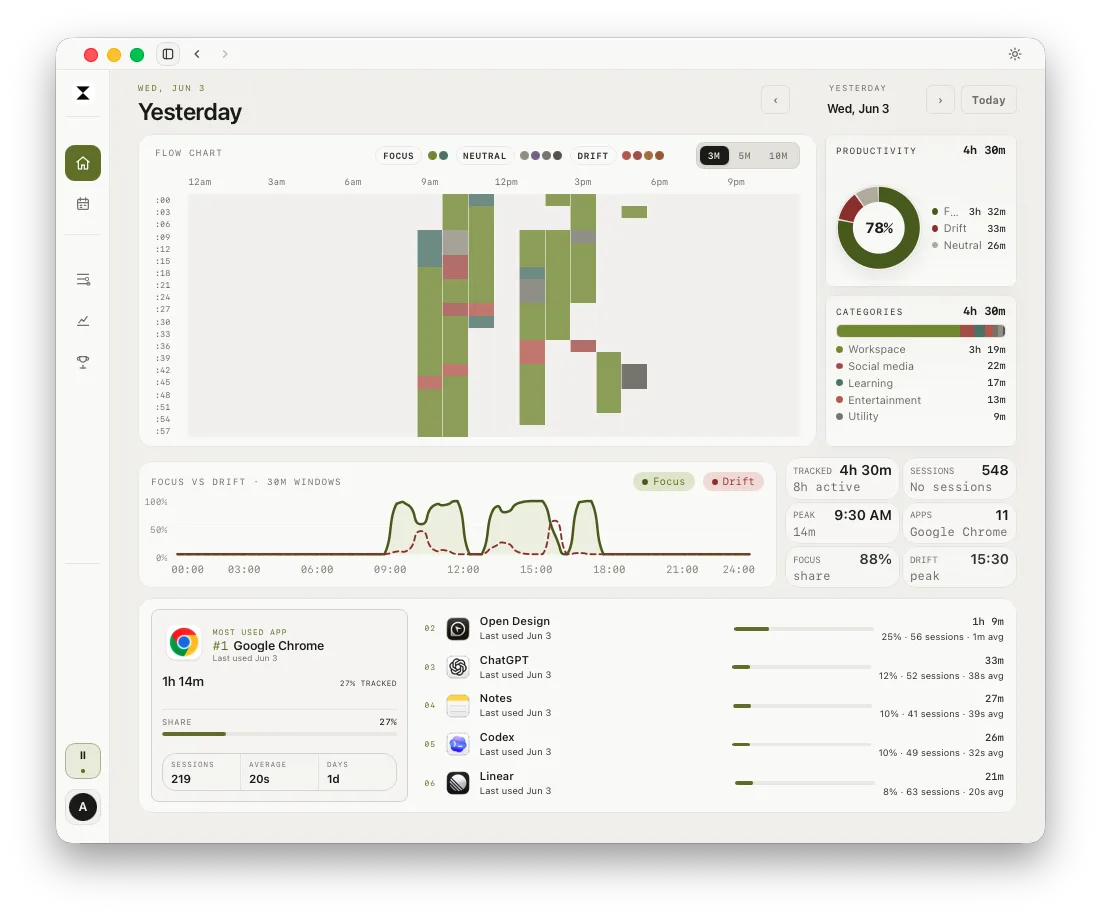
You still need to understand the gaps. A conversation away from your desk or time spent thinking on paper may matter even when your Mac has little activity to show.
If the purpose is personal review, begin by observing a normal workday. You can leave distraction alerts off while you learn what the activity record shows. drifty’s recording and alert settings let you choose how much it intervenes. docs.drifty.so
3. Spend a few minutes reviewing the day
Start with a five minute review near the end of work. Treat that as a practical limit, not another target you must hit perfectly.
First, check your intended result. What changed? Was the task completed, partly finished or replaced by more urgent work?
Then look at the activity timeline for an explanation. You might notice that your planned writing period was repeatedly interrupted by messages. Or the supposedly unproductive afternoon may have contained research you needed for tomorrow.
drifty’s day view shows activity in sequence. Its breakdown shows how the recorded time was divided. Use the sequence when the total alone leaves you with questions. drifty docs
You do not need to inspect every minute. Look closely at the periods that explain a missed priority or an unusually smooth piece of work.
4. Check classifications before trusting the charts
A productivity label is an interpretation. The same website can support work in one session and distract you in another.
Watching a tutorial while fixing a specific bug may be useful research. Continuing into unrelated videos after finding the answer is a different activity, even though the website has not changed.
In drifty, Focus, Neutral and Drift labels help organise the review. If a label looks wrong, check the underlying activity before changing your routine because of it.
The classification controls let you change the category or productivity label. An app or domain correction can affect matching past and future activity. A detail correction can target a matching window title or page URL. drifty docs
That scope matters. Marking an entire browser as focused work would hide the distinction you were trying to understand. Use a more specific correction when the context calls for it.
A higher score after correcting labels means the record changed. It does not, by itself, mean your working habits improved.
5. Test one change to your routine
Choose a pattern you can act on. Avoid rebuilding your whole day because of one difficult afternoon.
Suppose you notice that routine messages repeatedly interrupt the first hour of a writing task. Your experiment could be to check those messages after the first draft section, while keeping an agreed route open for urgent requests.
Try that for one working week. Review similar tasks and note what changed:
Did the planned work get finished?
Were there fewer unwanted interruptions?
Did the quality hold up when you checked it?
Did the change create another problem, such as missed requests?
Treat this as a personal experiment, not proof that one schedule works for everyone. A quiet drafting day and a day spent handling urgent support requests are different conditions.
If the change helps, keep it. If it creates problems or makes little difference, adjust the setup and try again.
Review the week before drawing a bigger conclusion
One day can be unusual. A weekly view helps you see whether a pattern repeats.
drifty’s week view arranges captured activity across days. Its Insights view helps you inspect recurring attention patterns. Check the original activity when a chart seems surprising. drifty docs
Keep a short note about unusual conditions. A deadline or a day full of meetings can explain a change without meaning your routine has failed.
Look for a question you can answer. For example: “Does moving invoice checks until after drafting help me finish the report?” That is easier to assess than trying to become more productive in every part of your day at once.
A daily review you can copy
Review prompt | Example answer |
|---|---|
What did I intend to finish? | Draft the client report’s recommendations |
What did I finish, and how did I check it? | Finished the draft and checked it against the brief |
What helped or interrupted the work? | A quiet first hour helped; repeated message checks split the afternoon |
What will I try next? | Finish the next draft section before checking routine messages |
This is an example, not a result measured in a product test. Keep your own answers short enough that the review remains useful.
Set privacy controls before tracking client work
Window titles and website details can reveal what you are working on. Check what the app records and where that information goes before using it around confidential material.
drifty keeps raw activity history local by default. Local AI processes classification on your device, while remote AI can send selected activity fields to a provider. Optional Device Sync is another separate setting that can copy raw activity segments to account storage. drifty docs
Product analytics is enabled by default and can be disabled under Privacy in Settings. Local AI does not switch it off. drifty.so
The private time tracker overview explains these choices.
Next step
Download drifty for Mac or Windows to try a daily review, then read automatic vs manual time tracking or focus apps for Mac.
FAQ
Can I track productivity on Mac without manual timers?
Yes. An automatic tracker such as drifty can collect activity while you work. Pair that record with a short note about what you completed, so your review covers outcomes as well as time.
Does more screen time mean I was more productive?
No. More screen time can reflect useful work, repeated mistakes or time spent waiting. Check what was completed and whether it met the task’s requirements. Activity duration alone cannot answer that.
Should all work activity be labelled as focused time?
Necessary work can include administration and coordination as well as concentrated task work. Keep the labels useful for your own role. Do not change them just to make a score look better.
Can this replace the time records I need for billing?
A personal productivity review serves a different purpose. If you need billable hours or client timesheets, keep the records your billing process requires. You can still use a short daily review to understand interruptions and improve your routine.
See your workday with context.
Let drifty capture the day automatically, then review focus and drift without rebuilding it from memory.