Mac 시간 추적 앱, 무엇을 기준으로 골라야 할까요?
기능 목록부터 보지 마세요. 먼저 무엇이 자꾸 무너지는지 봐야 합니다. 잊어버리는 timer, 애매한 app total, privacy 걱정, billing 정리, 혹은 하루 중간에 focus를 잃는 문제인지부터요.
Mac time tracking app은 멀리서 보면 비슷해 보입니다. reports, charts, timelines, projects, reminders, productivity insights를 모두 이야기합니다. 하지만 이 기능들이 해결하는 문제는 서로 다릅니다.
client billing이 필요한 freelancer와 study session을 이해하고 싶은 student는 같은 tracker가 필요하지 않습니다. timesheet approval이 필요한 manager와 workday drift를 보고 싶은 founder도 다른 기준으로 골라야 합니다.
이 글은 “가장 좋은 time tracker”를 고르는 글이 아니라, 내 workflow에서 무엇이 자꾸 깨지는지에 맞춰 고르는 가이드입니다.
timer를 자주 잊고 개인 Mac focus context를 보고 싶다면 drifty 같은 automatic tracker가 맞습니다. invoice, approval, payroll, attendance가 필요하다면 team timesheet tool을 고르세요. 단순 app total만 필요하다면 Apple Screen Time으로도 충분할 수 있습니다.
먼저 failure mode를 정하세요
time tracking app을 가장 빨리 고르는 방법은 문제를 구체적으로 말하는 것입니다. “시간 추적이 필요해요”는 너무 넓습니다. “task를 바꿀 때마다 timer를 잊어요”, “Chrome 시간이 뭘 의미하는지 모르겠어요”, “팀 billing을 위해 승인된 timesheet가 필요해요”처럼 말해야 선택이 쉬워집니다.
| 문제 | 찾아야 할 것 | 피해야 할 것 |
|---|---|---|
| timer를 자주 잊음 | Automatic background tracking | Manual-only timers |
| app total이 애매함 | App, website, session context | App-name-only reports |
| client billing | Projects, billable rates, exports | Personal-only dashboards |
| privacy 걱정 | Local-first tracking and AI choices | Opaque cloud-only capture |
| focus를 자주 잃음 | Drift detection and recovery cues | End-of-week reports only |
1. timer가 내 하루를 버틸 수 있는지 보세요
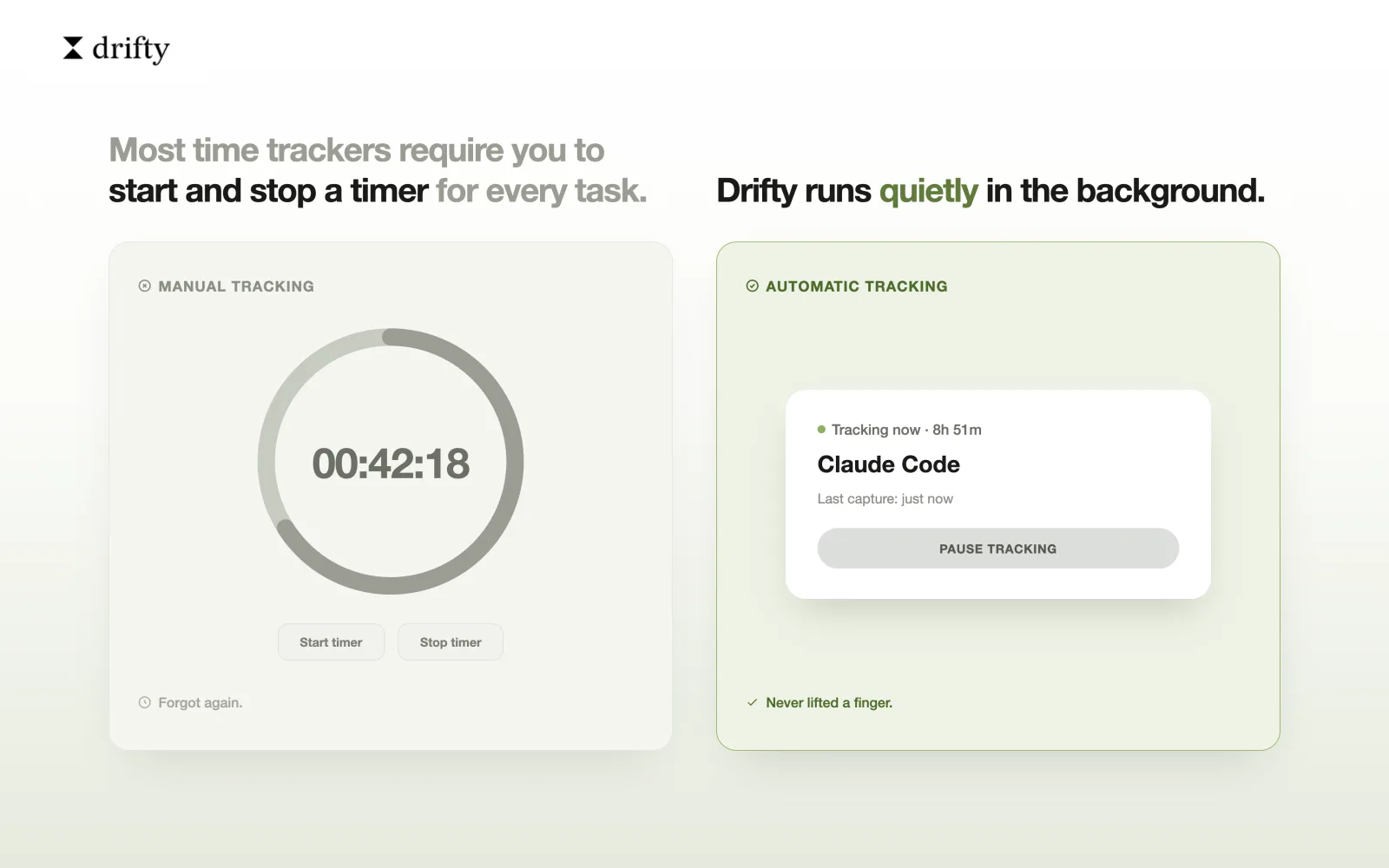
manual timer는 하루가 몇 개의 분명한 task로 나뉠 때 잘 작동합니다. 하지만 Slack 답장, browser search, document edit, meeting, 또 다른 tab, 다시 원래 task로 돌아오는 식의 하루에서는 쉽게 무너집니다.
하루 끝에 기억으로 시간을 복원하고 있다면 manual timer를 foundation으로 삼기 어렵습니다. 먼저 tracker가 관찰하고, 나중에 내가 review하는 방식이 더 맞습니다.
2. 같은 app 안의 context를 이해하는지 확인하세요
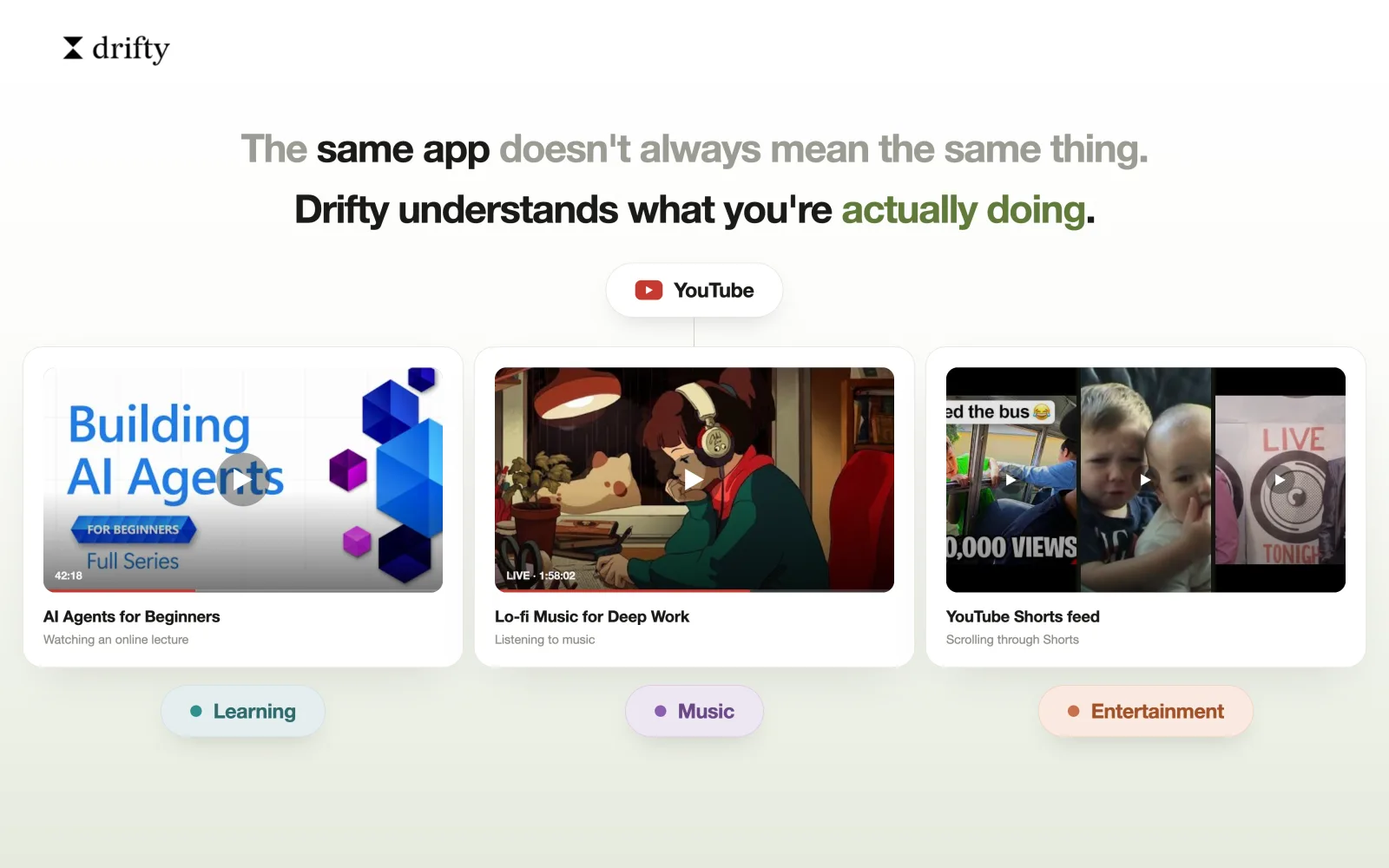
현대 Mac work에서 app total은 약한 신호입니다. browser는 writing, research, admin, learning, entertainment, drift 모두가 될 수 있습니다. Slack도 필요한 coordination일 수도 있고 반복 interruption일 수도 있습니다.
좋은 tracker는 container만 보여주지 않고 session을 이해하게 도와야 합니다. website context, window title, local rules, AI classification, review 가능한 timeline이 있는지 확인하세요.
3. report 개수보다 review 화면을 보세요
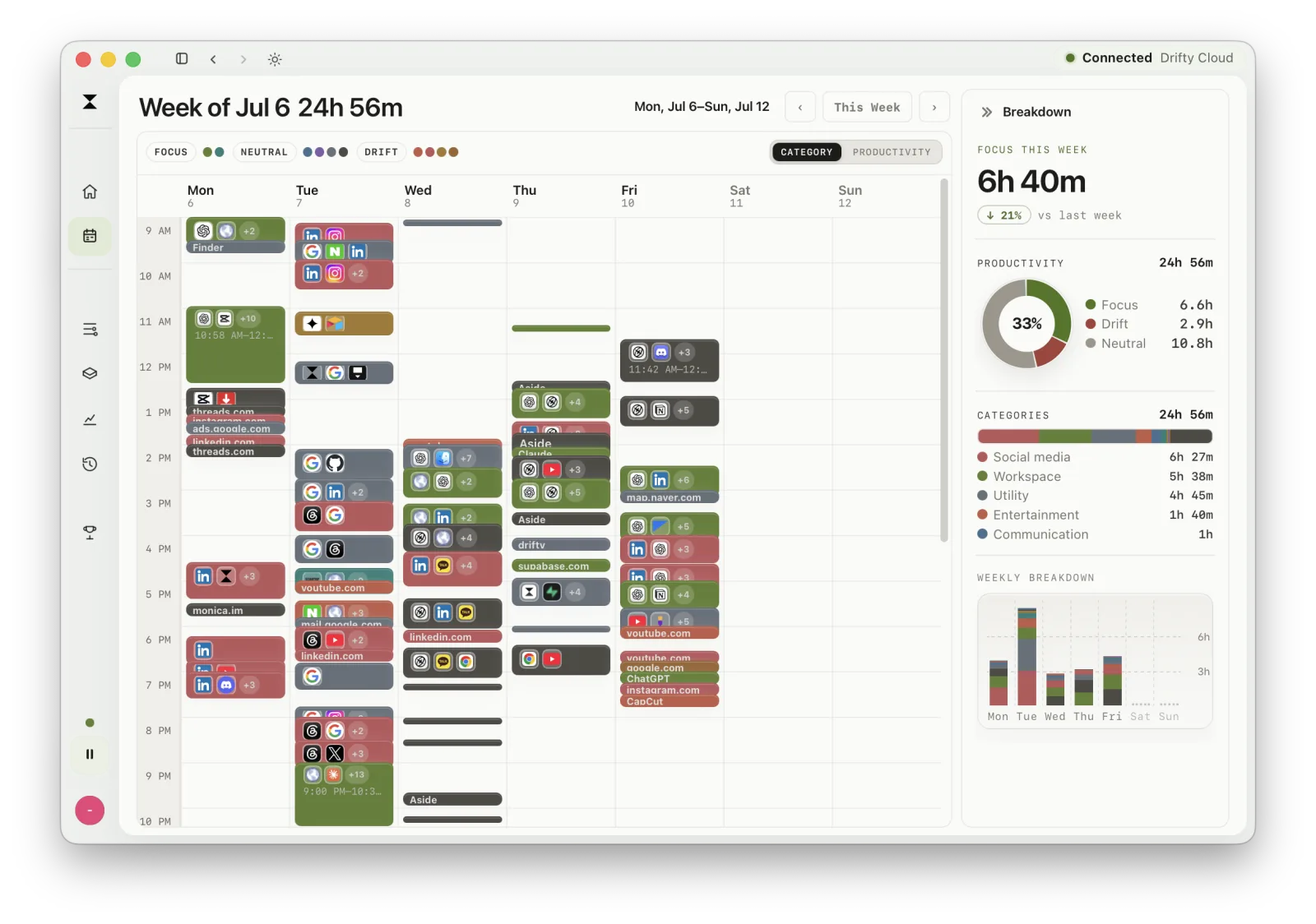
많은 tool에는 reports가 있습니다. 하지만 messy한 하루 끝에 보고 바로 이해할 수 있는 report는 많지 않습니다. dashboard가 있는지가 아니라, 내일 무엇을 바꿀지 보이는지가 중요합니다.
개인 focus 목적이라면 하루 total보다 weekly rhythm이 중요합니다. focus가 언제 유지됐는지, drift가 어디에 몰렸는지, transition이 너무 많았던 날이 언제인지 보여야 합니다.
4. AI가 어디에서 실행되는지 결정하세요
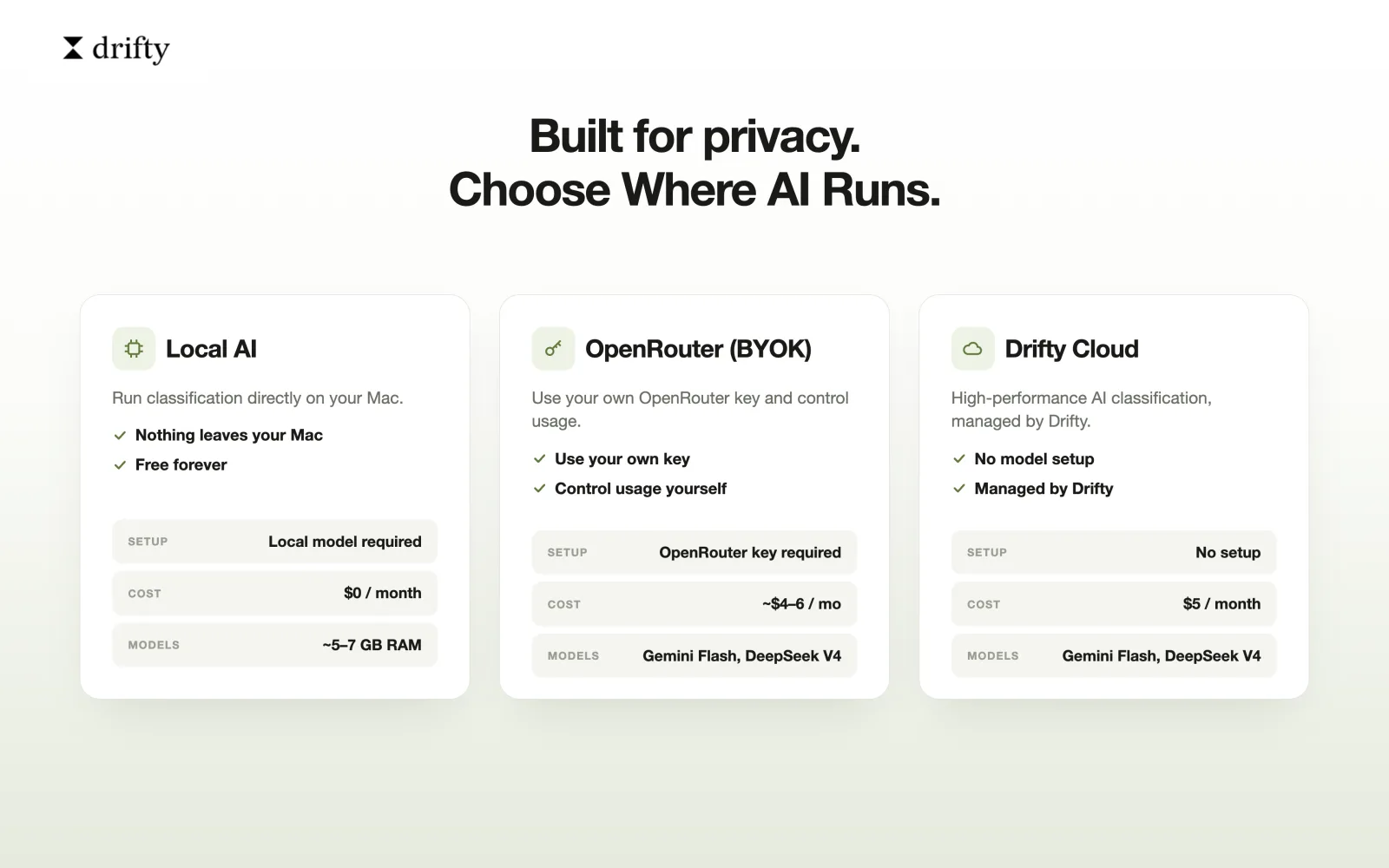
AI는 activity classification과 pattern summary를 더 유용하게 만들 수 있습니다. 하지만 activity history는 민감한 데이터라서 AI setup 방식이 중요합니다.
privacy가 중요하다면 local-first tracking, optional local AI, bring-your-own-key path를 확인하세요. drifty Free plan은 local-first이며 local classification과 predefined rules를 지원하고, drifty Cloud billing이 필요 없습니다. paid Pro plan은 key나 model 설정 없이 기기 최대 3대에서 자동 AI 분류를 제공하며, 추적은 local-first로 유지됩니다.
5. measurement만 필요한지, recovery도 필요한지 보세요
어떤 time tracker는 retrospective report에 집중합니다. 하루가 끝난 뒤 무슨 일이 있었는지 알려줍니다. billing이나 reporting이 목적이라면 충분할 수 있습니다.
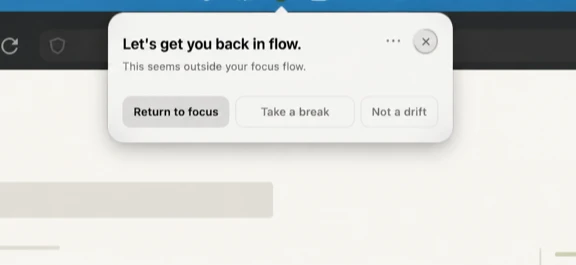
하지만 focus가 목적이라면 retrospective report는 절반만 해결합니다. 원래 하던 일로 돌아갈 수 있어야 합니다. 여러 tabs와 apps 사이에서 일하는 사람에게는 drift detection과 return cue가 중요합니다.
어떤 Mac time tracker를 골라야 할까
drifty를 고르세요:
- 대부분 Mac에서 일한다면
- timer를 자주 잊는다면
- local-first tracking을 원한다면
- app과 website context가 필요하다면
- focus, neutral, drift review가 중요하다면
다른 도구를 고르세요:
- payroll이나 attendance가 필요하다면
- manager approval이 필요하다면
- tracker 안에서 client invoice를 만들어야 한다면
- mobile-first workflow라면
- Screen Time 수준의 broad total만 필요하다면
최종 추천
도구는 목적에 맞게 골라야 합니다. team billing이 목적이면 team timesheet system을 고르세요. device usage total만 필요하면 Screen Time부터 시작하세요. 개인 Mac focus tracking이 목적이면 자동으로 관찰하고, context를 보여주고, 내가 행동할 수 있게 만드는 도구가 필요합니다.
drifty는 이 지점에 맞습니다. Mac native이고, local-first이며, automatic tracking을 기반으로 focus, neutral activity, drift를 구분합니다. 무료로 시작하고, hosted Cloud AI summary가 편의성으로 느껴질 때만 업그레이드하면 됩니다.
Related reading
FAQ
Mac time tracking app을 고를 때 무엇을 봐야 하나요?
먼저 고치고 싶은 workflow 문제를 정해야 합니다. manual timer, automatic tracking, app and website context, project billing, privacy controls, focus recovery, end-of-day review 중 무엇이 필요한지 확인하세요.
automatic time tracking이 manual timer보다 나은가요?
timer를 자주 잊거나 context switching이 많다면 automatic tracking이 더 잘 맞습니다. 단순 billing workflow이고 start/stop 습관이 확실하다면 manual timer도 충분할 수 있습니다.
drifty는 어떤 경우에 잘 맞나요?
drifty는 local-first personal Mac tracking, automatic activity context, focus/drift review, optional AI modes를 원하고 하루 종일 timer를 켜고 싶지 않은 사용자에게 잘 맞습니다.
팀 timesheet 도구가 더 나은 경우는 언제인가요?
approval, payroll, invoice, client billing, attendance, admin control이 주 목적이라면 팀 timesheet 도구가 더 적합합니다. drifty는 개인 Mac focus context에 더 집중합니다.
- drifty pricing page
- 제품 이미지는 drifty launch image set을 사용했습니다.