How to Choose a Time Tracking App for Mac: 8 Practical Checks
Choose a time tracker that fits your Mac and the way you work. Use this guide to check compatibility, reporting, privacy and free plan limits, then try a short test before committing.
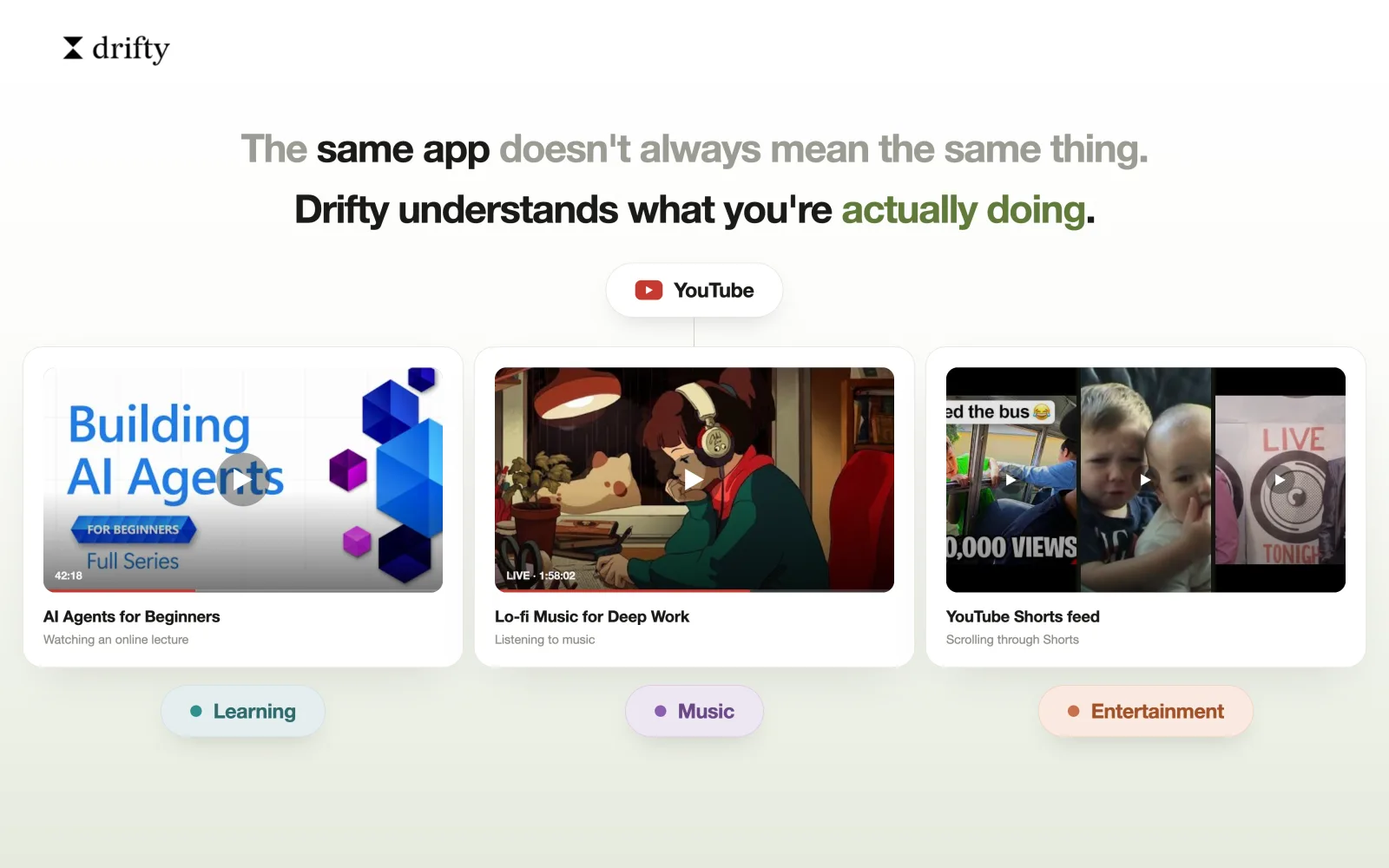
A tracker can tell you that you spent two hours in your browser and still leave you wondering what happened. Were you researching a project? Answering a client? Looking for the answer to a bug that should have taken five minutes?
The useful detail depends on why you are tracking time. The main question arises here is:
How to choose a time tracker for Mac ?
To choose a time tracking app for Mac, decide whether you need personal activity insights or a record of client hours. Check Mac compatibility, recording methods, privacy and the reports included in your plan. Then test the app during a normal workday, including time away from your keyboard.
If you want to review your own activity, Drifty’s Mac time tracker is one example of an automatic approach. If you need hours approved for billing, you will need to check a different set of features.
8 things to look for when choosing a Mac time tracking app:
1. Decide what you need the time record for
Before you install anything, finish this sentence: “At the end of the week, I need to know…”
Your answer gives you a better shortlist than a long feature comparison.
What you need to know | Features to check |
|---|---|
Where your attention went while working or studying | An activity timeline, useful categories and a way to correct labels |
How many hours belong to each client | Project entries, editable durations and reports you can share |
Whether a project took longer than planned | Time grouped by project, estimates and consistent reporting |
Which team hours are ready for approval | Shared timesheets, access controls and an approval process |
An accountant might need separate records for each client, even when all the work happens in the same spreadsheet app. A software engineer might want to understand how much of an afternoon went into interruptions.
Those are different questions. Decide which one matters to you before comparing products.
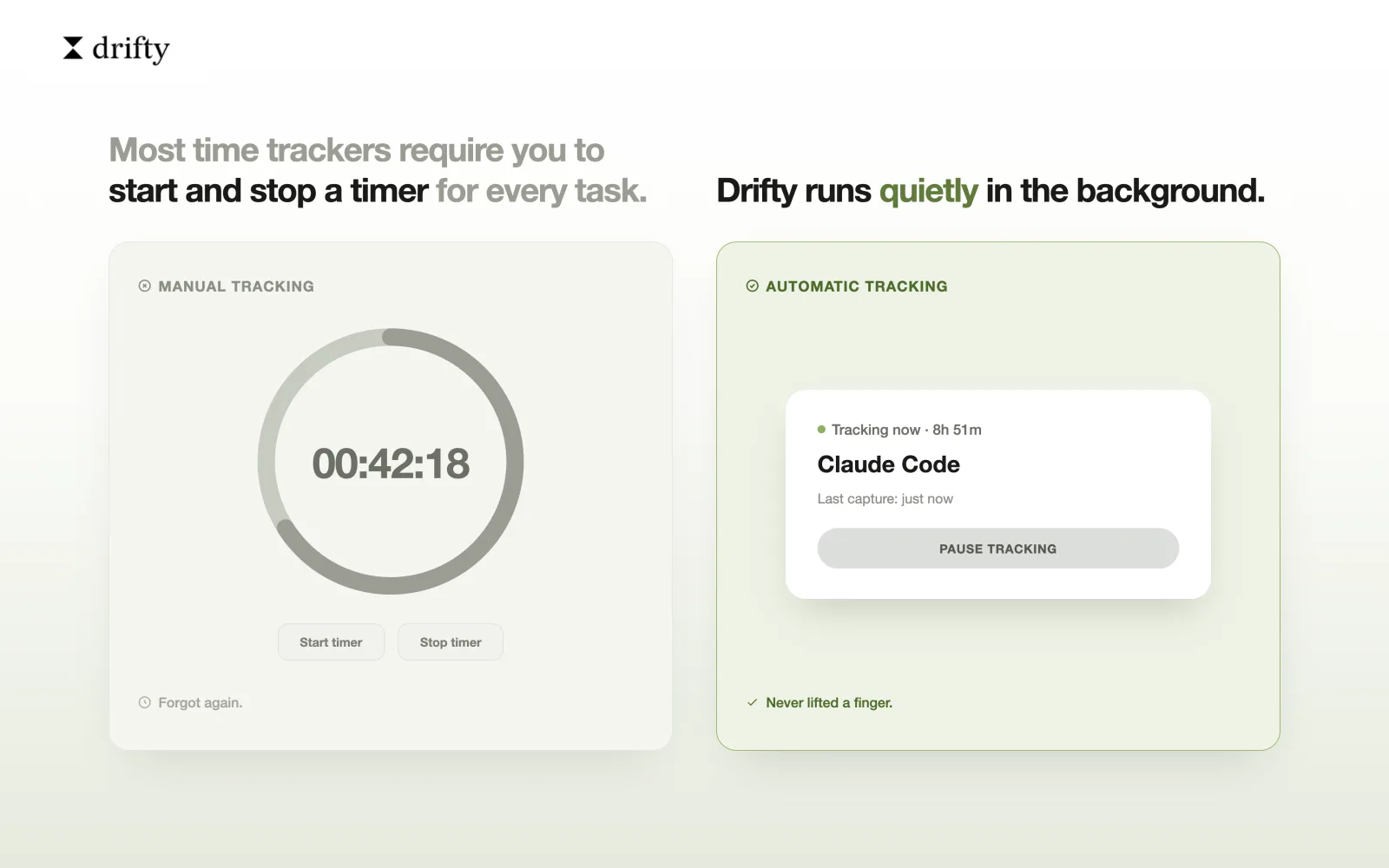
Manual timers work when your day is cleanly divided into a few known tasks. They break when your work is fragmented: a Slack reply, a browser search, a quick document edit, a meeting, another tab, then back to the original task.
If you regularly reconstruct your day from memory, a manual timer is not the right foundation. You need the tracker to observe first, then let you review.
2. Check that the app supports your Mac
Start with your hardware and operating system.
Open the Apple menu and select About This Mac. Check your macOS version and whether your computer uses Apple silicon or an Intel processor. Apple’s guides explain how to identify the processor and find your macOS version.
Then check the tracker’s requirements:
Does it support your processor and macOS version?
Does it record desktop activity, or mainly work inside a browser?
Does detailed website tracking support the browser you use?
Which permissions are required, and what works without them?
A browser dashboard does not tell you whether a product also has a desktop recorder. Check what you actually install.
For example, Drifty’s current public app requires Apple Silicon and macOS 13 or later. Window titles and browser context depend on permissions and supported connections. Its automatic tracking page explains what those permissions add.
3. Choose between manual timers and automatic recording
A manual timer records a task you name. You start it when work begins and stop it when that work ends.
That can suit a designer who starts a clearly defined revision. The entry already says what the time was for.
Automatic recording captures computer activity while you work. It can help when you switch tasks often or forget to start a timer. You then review what was recorded.
Neither method removes the need for judgment. An open document does not prove you were working on it the whole time. A timer can keep running after you leave your desk.
Some tools combine automatic activity history with project entries. If that appeals to you, check how much effort it takes to turn the history into a usable record.
Also separate recording from AI classification. Recording captures activity. Classification tries to label it. A mistaken label should be easy to correct.
4. Inspect a report before filling it with a week of work
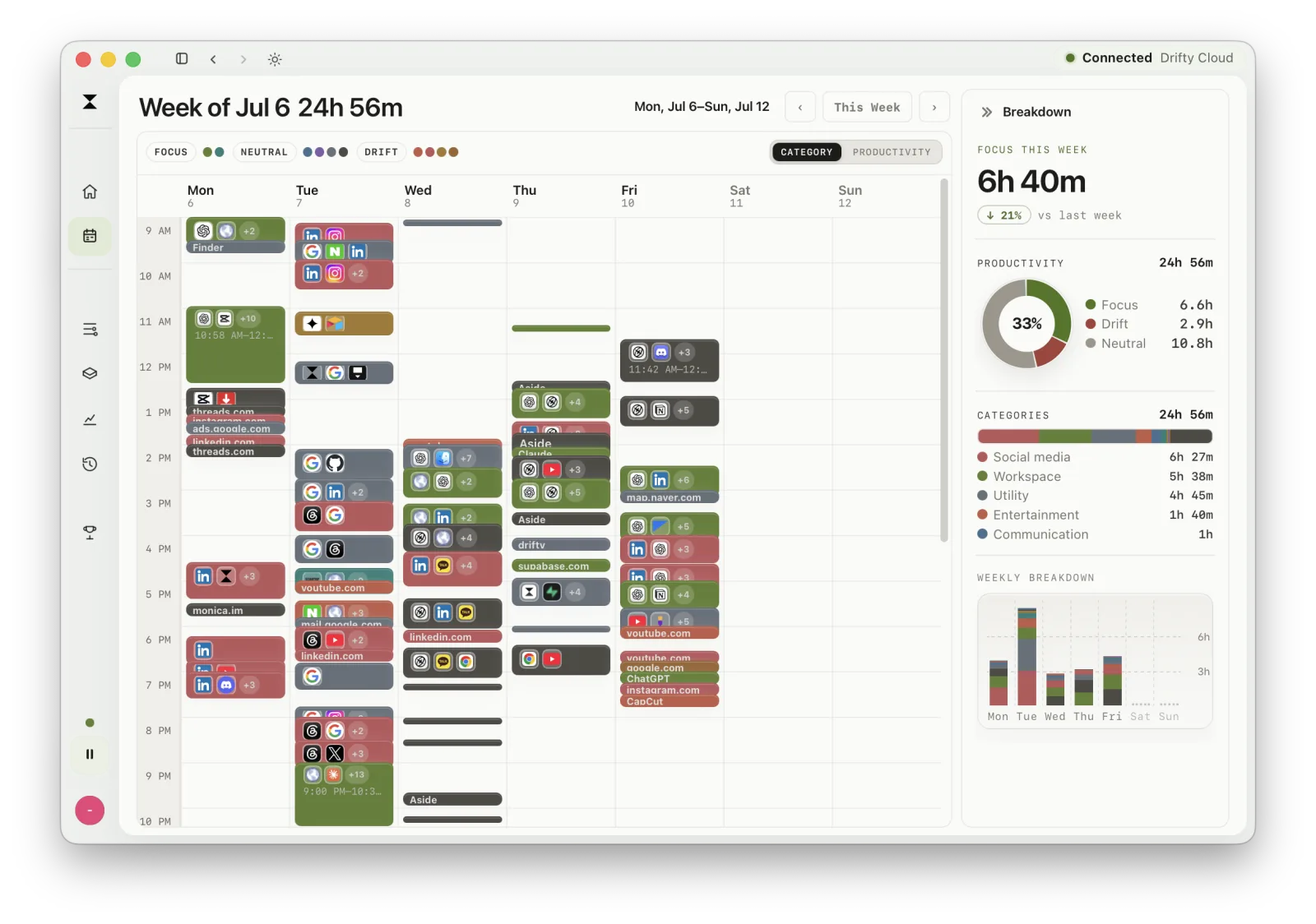
Create a few sample entries and try to get the result you need.
If you bill clients, check whether you can separate projects and add clear descriptions. Try correcting an entry that is too long. Export a sample report and open it.
For timesheet software on a Mac, ask:
Can I add work that happened away from the computer?
Can I correct or split an entry?
Can I export the required format on my plan?
Can I control what a client or colleague sees?
PDF and CSV solve different problems. A PDF may be enough to send a readable report. A CSV is more useful when you need to work with the data in another system. Check each format separately.
If you are tracking personal habits, a useful report might show when interruptions clustered during the day. Drifty’s productivity tracking overview shows how it approaches that kind of review.
More recorded hours do not automatically mean better work. Use the record alongside what you actually completed.
5. Decide whether you need recovery, not just measurement
Some time trackers are only retrospective. They tell you what happened after the day is over. That is enough if your goal is billing or reporting.
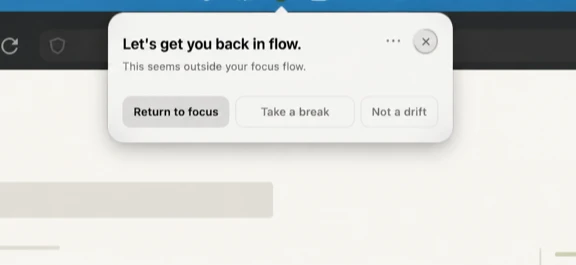
If your goal is focus, retrospective reports are only half the job. You also need help returning to the work you meant to continue. That is why drift detection and return cues matter for people whose work happens across many tabs and apps.
6. Understand where activity data goes
A time record can contain more than durations. Window titles and website addresses may reveal client names or private work.
Read the permissions explanation and privacy information before enabling detailed capture. Look for answers to four questions:
What information is recorded?
Where is that information stored?
What is sent elsewhere for analysis or sharing?
How can I pause tracking and delete records?
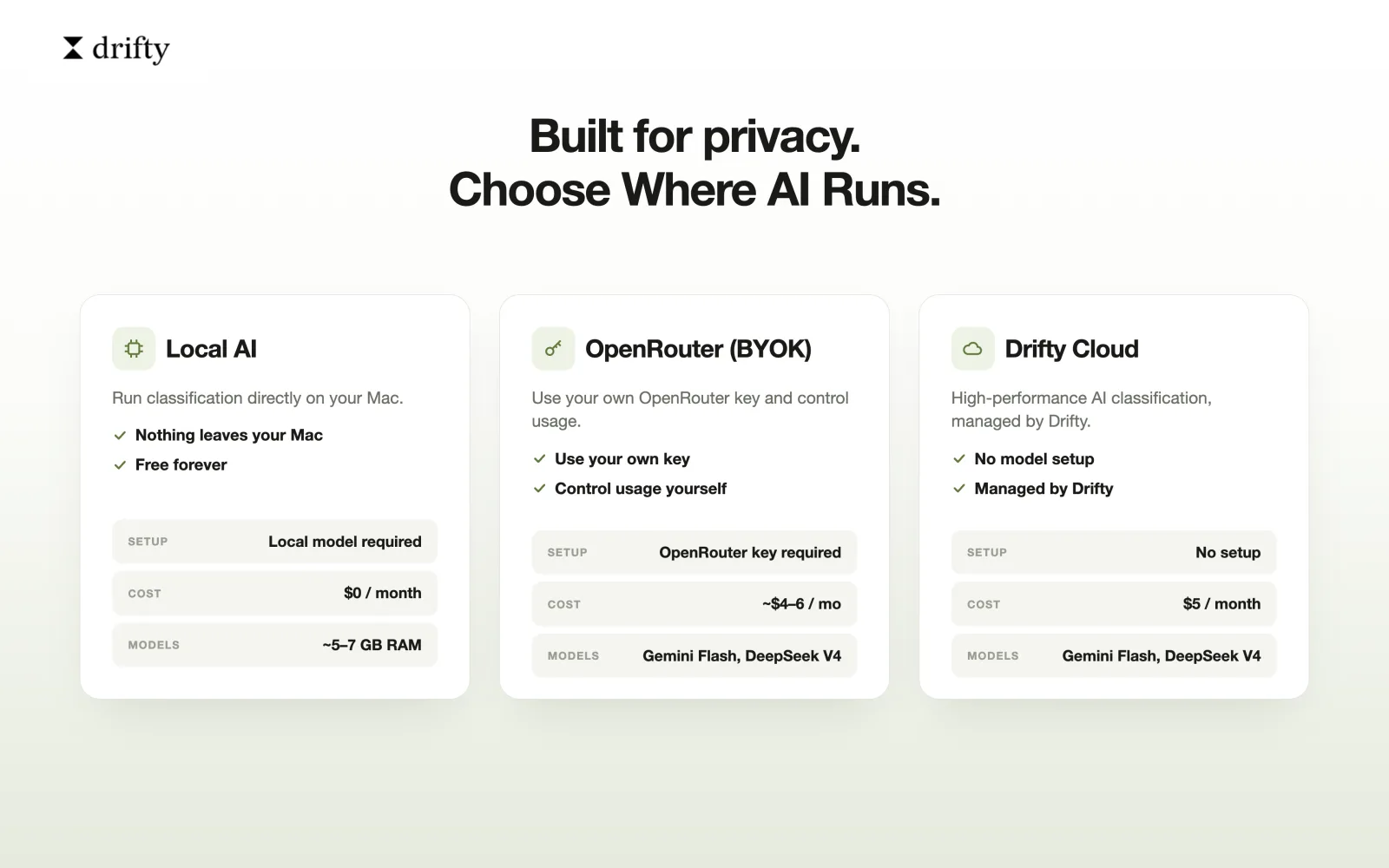
Local storage and local processing are separate choices. Keeping a timeline on your Mac does not, by itself, mean that every optional AI feature runs there too.
Using your own API key also does not make processing local if that key connects to an external service.
Drifty keeps raw activity history local by default and offers a choice of AI processing methods. Its private time tracking page explains that distinction.
For shared workspaces, check exactly what another person can see. A total for a project and a list of browser activity expose different levels of detail.
7. Check what remains free after the trial
Test the feature that could make you pay.
If you need a monthly report, try the relevant date range. If you need a spreadsheet export, download one. If several people will use the account, check the user allowance.
A free timer may be enough for personal use even when invoicing costs extra. The question is whether your required workflow stays available.
For AI features, check whether a subscription includes the analysis or whether a separate provider charges for usage. A tracker’s free plan does not necessarily cover external API costs.
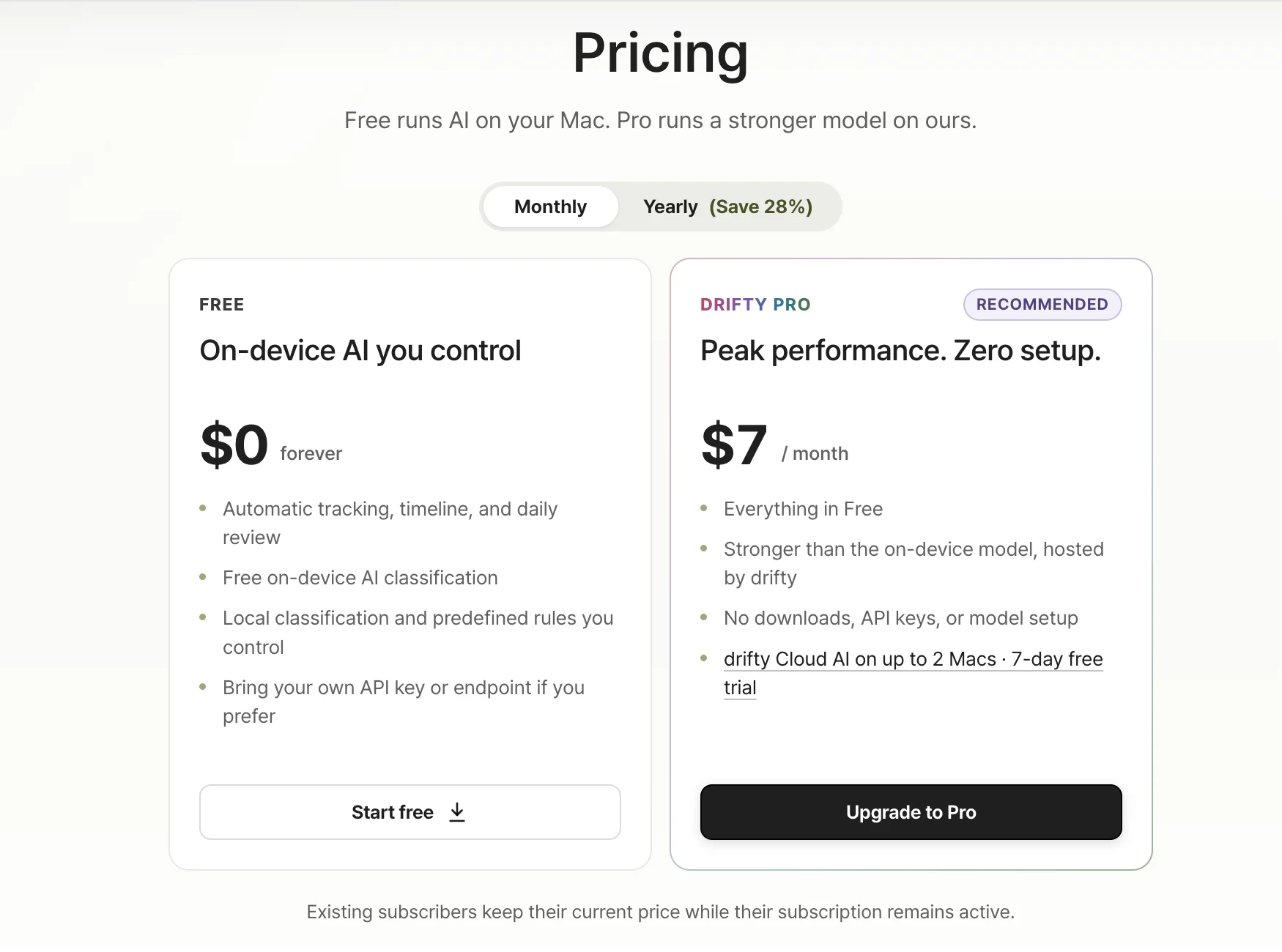
Drifty lists automatic tracking and on device AI in its free plan, with hosted Cloud AI as a paid option. See the current plan details for the distinction.
For named alternatives and their restrictions, use our free Mac time tracker comparison.
8. Run a short test with your normal work
Use this suggested test before relying on an app for a full week. Keep a simple note of what you do and when, so you have something to compare with the result.
Test | What to do | What to inspect |
|---|---|---|
One defined task | Work on a named task for 20 minutes | Whether the duration and description are useful |
Two jobs in one app | Switch between separate projects in your usual editor or browser | Whether you can separate the work afterward |
Work away from the Mac | Take a short call or read printed notes | How the gap is handled and whether you can account for it |
No internet | Disconnect briefly while continuing local work | Whether activity is saved and what happens when you reconnect |
A correction | Change a wrong label or duration where supported | How easy it is to fix the record |
The final output | Produce the report or review you need | Whether it is available on your intended plan |
Check the app’s pause control too. You should know how to stop capture when you want a private break.
If you use a MacBook on battery, inspect Activity Monitor during ordinary work. Apple’s Energy pane shows relative energy use, including Energy Impact. It is not a direct percentage of battery drain. Apple’s energy monitoring guide explains the readings.
Compare similar work sessions rather than judging an app during installation or a model download.
At the end of the test, ask whether the record answered your original question and how much cleanup it needed. If you still cannot produce the report you need, try another tool before adding more data.
Which Mac time tracker should you choose?
Choose an app based on the record you need at the end of your workday. If you want automatic activity tracking to help you understand where your time goes, explore Drifty’s Mac time tracker. If you need client billing or approved timesheets, check that your chosen app includes those features in the plan you intend to use.
Final recommendation
Pick the tracker that matches the job. For team billing, choose a team timesheet system. For rough device usage, start with Screen Time. For personal Mac focus tracking, choose a tool that observes automatically and gives you context you can act on.
That is where drifty fits. It is Mac native, local-first, automatic, and built around the difference between focus, neutral activity, and drift. Start free, then upgrade only if hosted Cloud AI summaries are worth the convenience.
Related reading
FAQ
Which features matter most when choosing a time tracking app for Mac?
Start with the output you need and your Mac’s compatibility. For personal activity review, check the timeline and correction controls. For client work, check project entries and reporting. Test the required features on the plan you intend to use.
Should software engineers use automatic or manual time tracking?
Automatic recording can help engineers review a day spent switching between coding tools and communication apps. Manual entries can make it easier to state which task or client the work belongs to. If you need both, check how recorded activity becomes an editable project entry.
What should accountants and consultants check before choosing a tracker?
Check whether time can be separated by client and whether reports include useful work descriptions. Test the export format your workflow needs. If someone must approve the hours, confirm that approval is included in the chosen plan. Account for calls and work away from the Mac.
Does automatic tracking record all my working time?
No. Computer activity cannot fully describe work done elsewhere or explain every period without keyboard input. Review the record and add missing work where the app supports it. For billing, confirm that corrections appear in the final report.
Does a Mac time tracker need AI?
No. Named timers and rule based categories can be enough. AI may help label recorded activity, but check its mistakes and processing settings. Choose it because it makes your review easier, rather than treating it as a requirement.
How can I tell whether a free plan is enough?
Complete a sample of your normal workflow using only free features. Record time, make a correction, review the result and export it if required. Check that those features remain available after any trial ends and that the user limit fits your needs.
Source notes
Product images are from the drifty launch image set.
Choose the tracker that matches your workday.
Try drifty if your Mac day is too fragmented for timers and too nuanced for app totals.